Showing posts with label apple-phones. Show all posts

MINI brings roadside assistance into the 21st century with mobile app


Drive a MINI? Have an iPhone or Blackberry? Well then, you are in luck my friend. MINI has recently released a free app, MINI Roadside Assistance, to better assist its customers in times of need.

Should your street legal go-kart break down, be involved in an accident, blow a tire, or suffer some other incident while you are out motoring, MINI Roadside Assistance will use your device’s GPS and your vehicle’s unique identification number (VIN) to help expedite, um, roadside assistance. All the user has to do is launch the app and hit the “call” button.


While it sounds rather simple (although not quite as easy as OnStar’s automatic accident detection and alert system), simplicity is key in emergency situations…every second counts.

On a lighter note, the app not only provides direct roadside connection and vehicle location info, but it also includes other services/info regarding your MINI’s battery, tires, fuel, mechanical troubles, or lock-out situations.

The MINI Roadside Assistance (iTunes link) app is free for MINI owners (technically, it’s free for anyone, but offers zero functionality if you are MINI-less) and works alongside the free roadside assistance service while your MINI is still under warranty. (However, if you don’t have a MINI, but you are a AAA member, there is a similar app, AAA Roadside (iTunes link), available for the iPhone.) For more on MINI Roadside Assistance, check out the FAQ.

Happy Motoring!

[via MotorAuthority]

New case protects your iPhone from scratches


A Japanese company called Sanwa is selling a waterproof case [JP] (or a bag as they call it) that protects your iPhone from nasty stuff like scratches, water and sand. Sanwa says their 200-PDA016 is ideal for all users who can’t go hiking, to the beach or skiing without their iPhone.

The case looks pretty robust, but the company promises that users will be able to do everything with the iPhone in it: using the touchscreen, taking pictures and even listening to music (it’s equipped with a special jack for use with waterproof headphones). But be careful, the case is IPX7-certified, meaning it can withstand immersion in one meter of water for up to 30 minutes.


For $35, buyers will also get a neck strap, earphones and an armband. This sound like a very good price to me, but the problem is the case is only in Sanwa’s Japanese online store. You might want to contact the export specialists from the Japan Trend Shop or Geek Stuff 4 U if you want to get one shipped outside Japan.

sanwa_case_3

sanwa_case_iphone

Via Gizmodo

Baseball Superstars for iPhone


Baseball Superstars from Gamevil claims to be the #1 baseball game in the App Store. I can’t confirm or deny that, but I certainly can confirm that the game is lots of fun for any baseball fan. The characters, colors, physics and overall gameplay experience are tons of fun. If you enjoy baseball, you’re going to get hours and hours of baseball action out of this one.

The game features 10 different teams, 4 stadiums, 12 hidden players and 5 different (and challenging) game modes. The modes include normal, season, my league, homerun and mission. Each has its own unique flavor, and helps add to the depth and variety of the game. They’re ‘all good’.

As you progress your way into the game/season, you can customize your own pitcher and batter, purchase items, make trades, train players, and a whole lot more. The game overall is kind of ‘cartoony’, but it helps add to the fun, relaxed experience you’ll get with this game.

You can pick up Baseball Superstars for $2.99 in the App Store (iTunes link).

Note: A ‘Lite’ version of this game is also available (iTunes link). Try it before you buy! It allows for limited gameplay in each different game mode… and it’s still quite a bit of fun.

How to Jailbreak 2.x.3G iPhone Using QuickPwn Windows | iphone

.

These are instructions on how to drain your iPhone 3G for iPhone 2.1-2.2.1 firmware using QuickPwn for Windows.

If they intend to unlock the iPhone using this tutorial you can escape only if you are at 02.28 or lower base and to restore to 2.2 (not 2.2.1). If you use this tutorial to restore 2.2.1 firmware leak and no release available today. You can learn how to test your basic version here

Step One
Create a folder called Pwnage on your desktop.

Download the following files and place them in the Pwnage folder you just created:

- QuickPwn-225-2.zip

FOR THOSE WHO WANT TO UNLOCK:
- 2.2.0 (3G): iPhone1,2_2.2_5G77_Restore.ipsw

FOR THOSE WHO DO NOT WANT TO UNLOCK:
- 2.2.1 (3G): iPhone1,2_2.2.1_5H11_Restore.ipsw

Extract the QuickPwn-225-2.zip file to the Pwnage folder.


Step Two
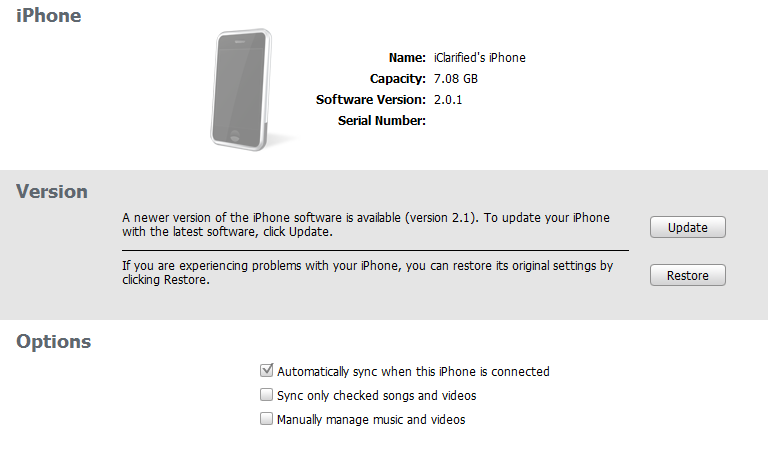
Connect your iPhone to the computer and launch iTunes.


Select your iPhone from the list of devices on the left. Now hold down shift and click the Restore button. Restore is preferred as it won't create any wasted space on your iPhone.


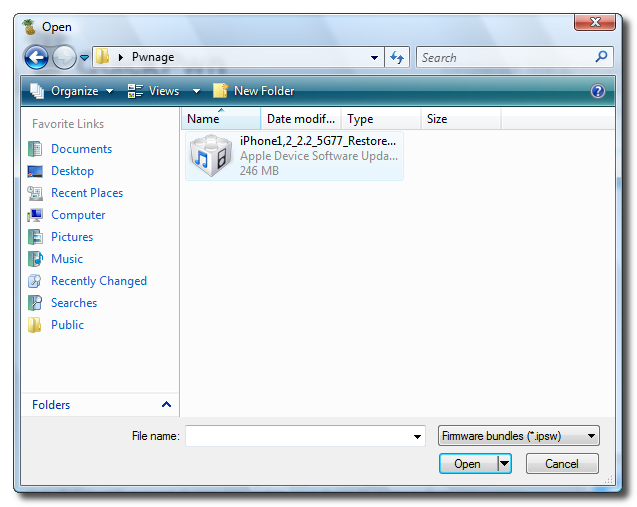
Navigate to the Pwnage folder on your desktop and select the firmware ipsw. Click the Open button to continue.


Step Three
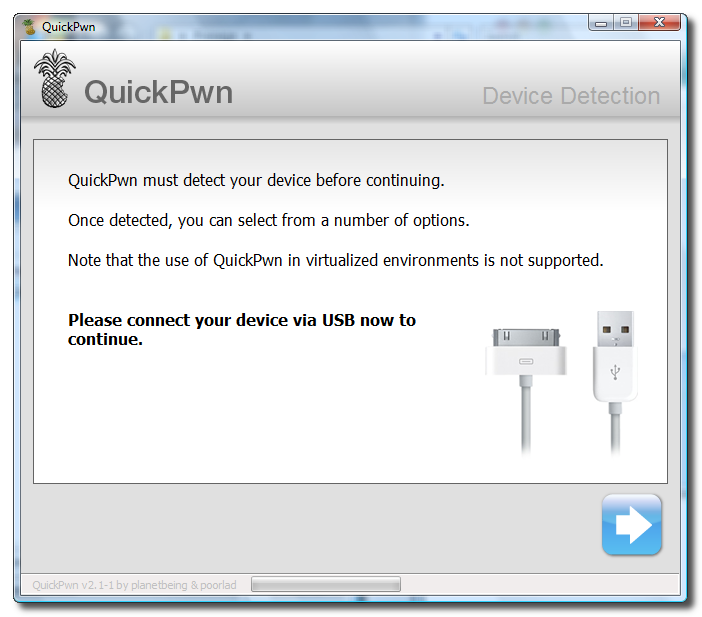
Once iTunes has finished updating your iPhone to the desired firmware you may launch QuickPwn.exe from the Pwnage folder on your desktop.


Step Four
Make sure you iPhone is connected to the computer and click the blue arrow to continue.


Step Five
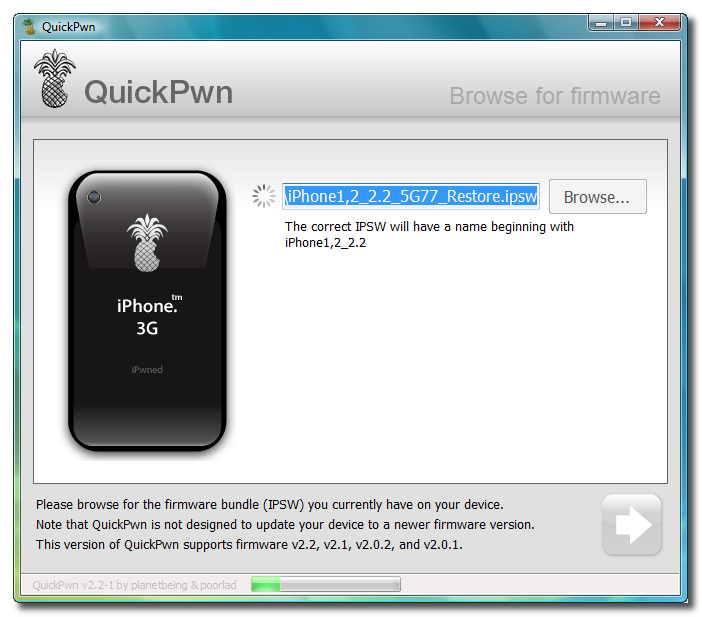
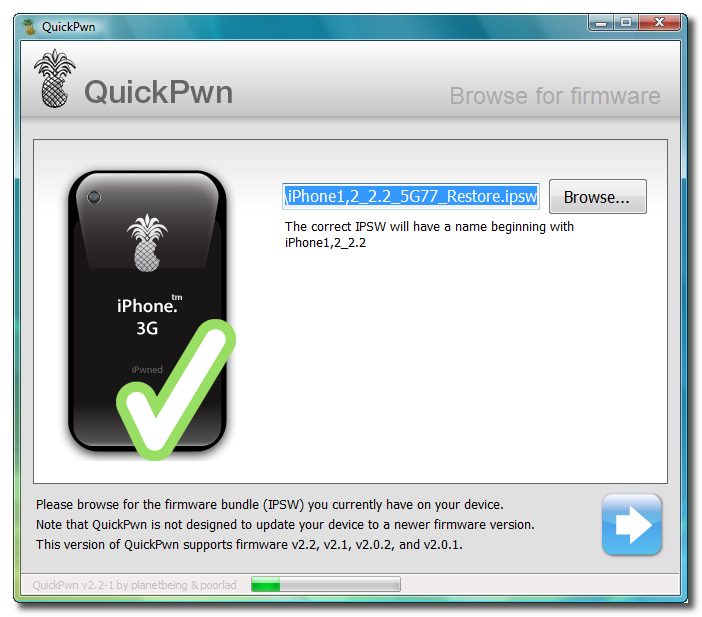
Click the Browse button to locate your iPhone firmware.


Step Six
Select the firmware ipsw from the Pwnage folder on your desktop then click the Open button.


Step Seven
QuickPwn will check to make sure the ipsw is valid. Click the blue arrow button to continue.


Step Eight
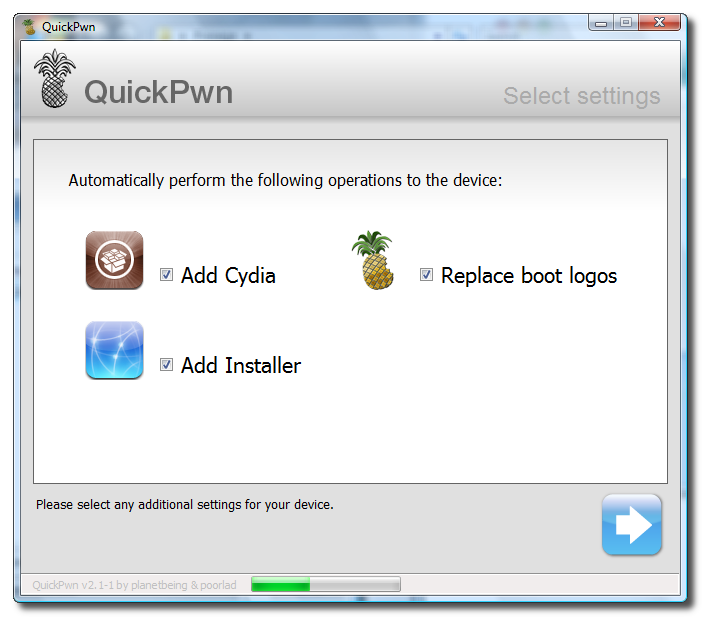
You can now select whether to Add Cydia, Add Installer, or Replace Boot Logos. Select the ones you would like to perform then click the clue arrow button


Step Nine
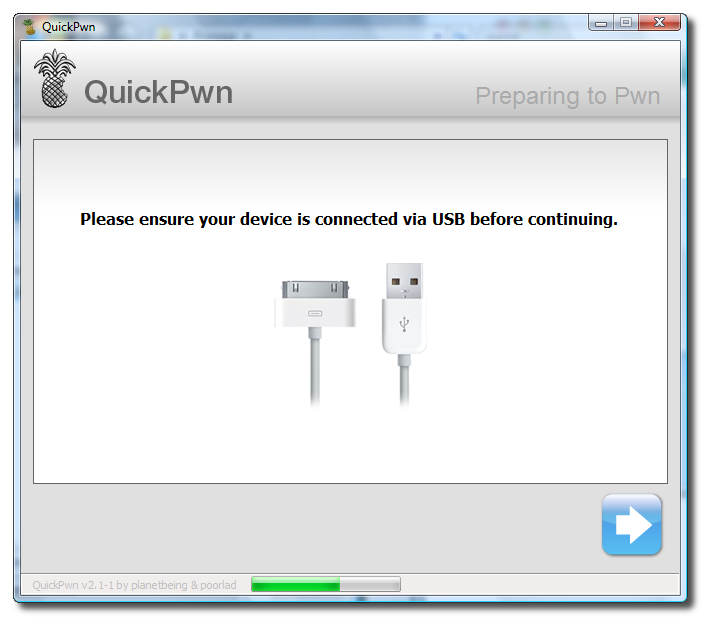
QuickPwn will now ask you to confirm your iPhone is connected via USB before continuing. Click the blue arrow button to proceed.


Step Ten
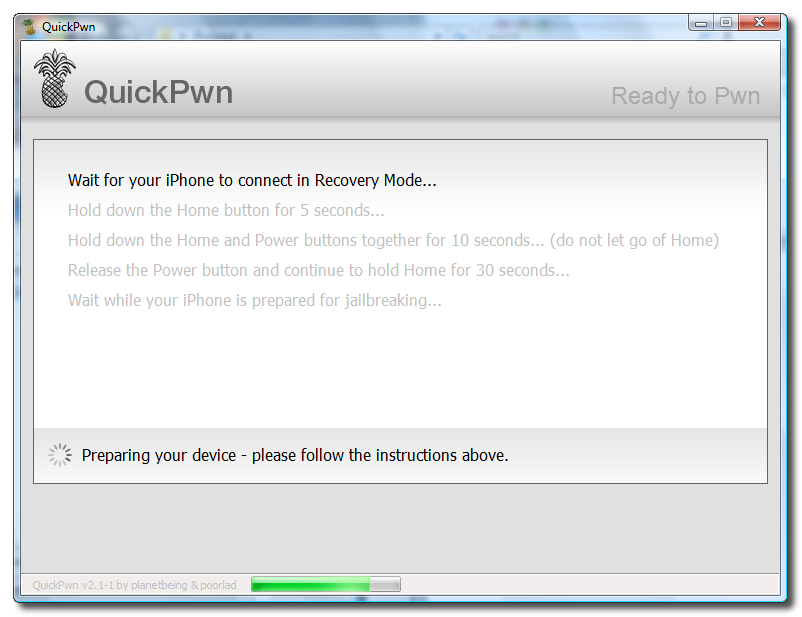
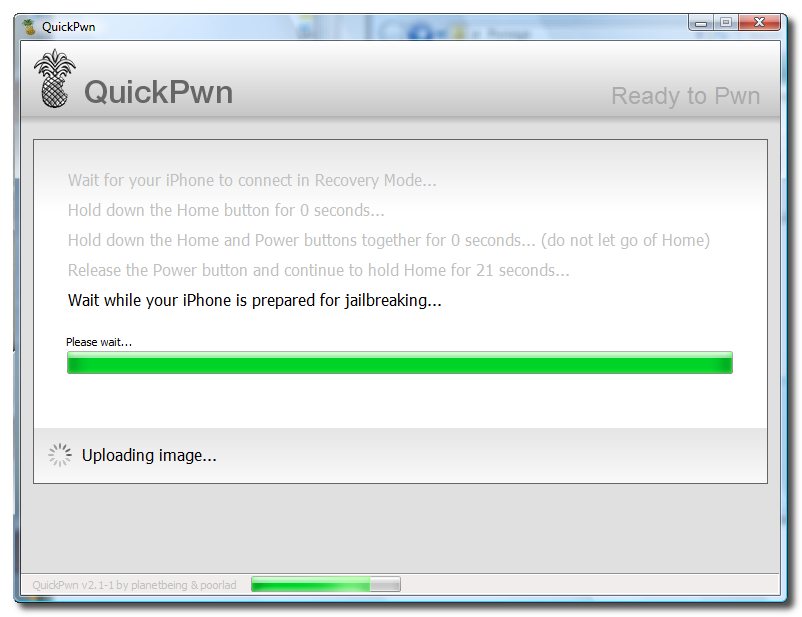
QuickPwn will now automatically put your iPhone into recovery mode. Once its in recovery mode you will be prompted to: Hold the Home button for 5 seconds, Hold the Home and Power buttons for 10 seconds, then release the Power button and continuing holding the Home button until your iPhone is in DFU mode.

Watch the prompts carefully and follow along.


Step Eleven
Once QuickPwn detects your iPhone in DFU mode it will begin the jailbreak process.


Step Twelve
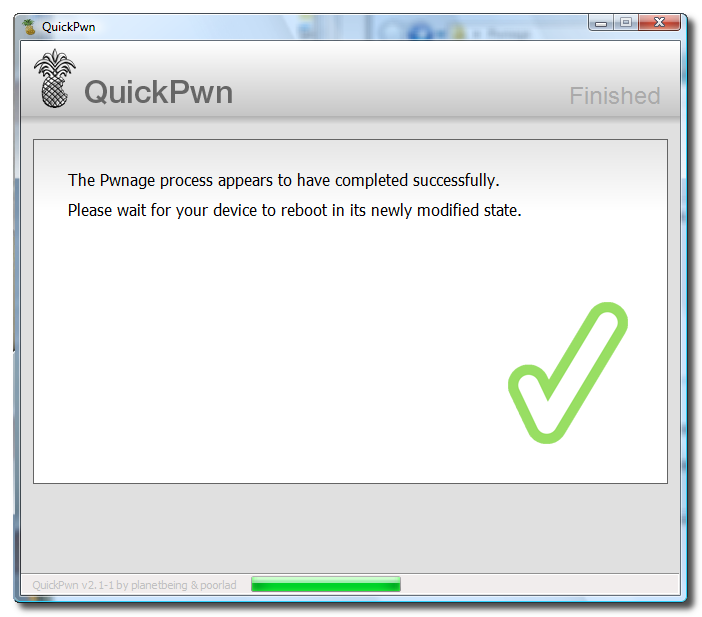
Once jailbreaking is complete QuickPwn will inform you that it was successfull.

How to Find the Firmware and Baseband Version of Your iPhone

.


These are instructions on how to find the firmware and baseband version (modem firmware) your iPhone is currently running.


Step One
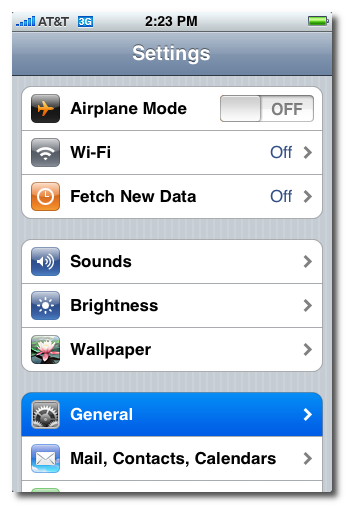
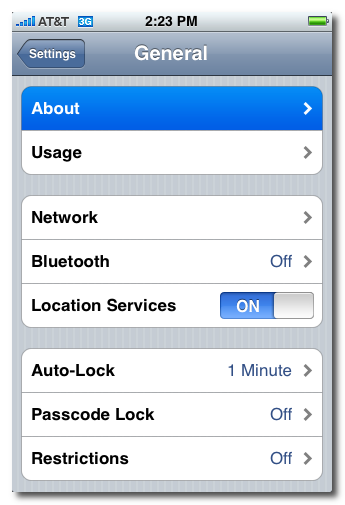
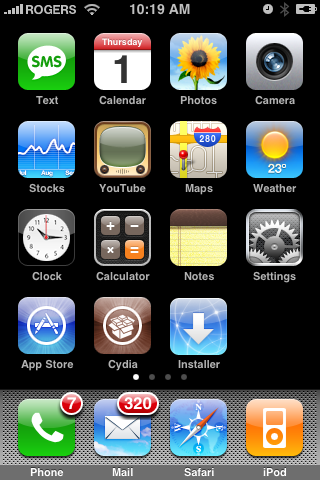
Press to launch Settings from your Springboard.


Step Two
Press to select General from the Settings Menu.


Step Three
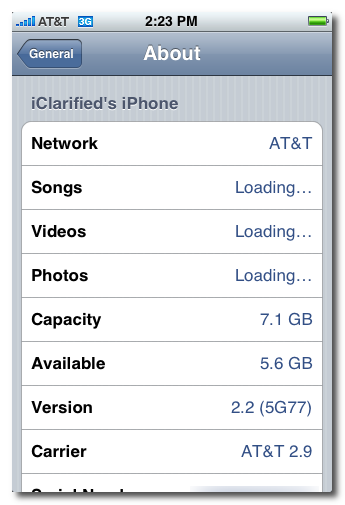
Press to select About from the General Settings Menu.


Step Four
From the about screen you can find your firmware version under the Version label.


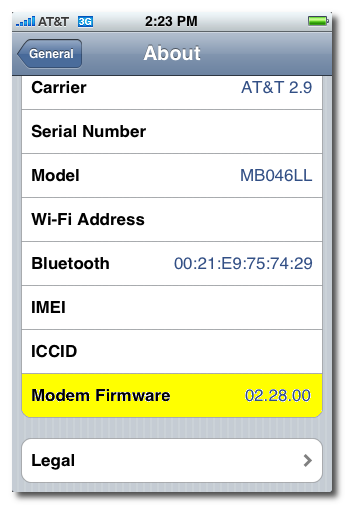
Scroll down and you can find your baseband version under the Modem Firmware label.


How to Unlock the iPhone 3G


ULOCKING APPLICATIONS SOURCES
These are instructions on how to software unlock the iPhone 3G for use with any GSM cellphone carrier.

Before you can follow these instructions you must have a jailbroken iPhone and you must be on the 02.28.00 baseband(modem firmware). This means that you must be running the 2.2 firmware or have used PwnageTool(NOT QUICKPWN) to install 2.2.1 without upgrading the baseband.

To find your firmware and modem firmware(baseband) versions you can follow this tutorial. If you are not on baseband version 02.28.00 then you need to follow one of these tutorials before unlocking: Mac, Windows


Step One
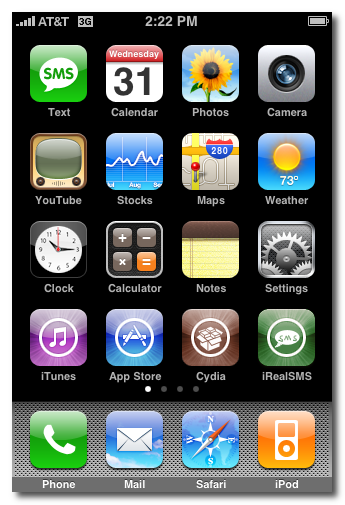
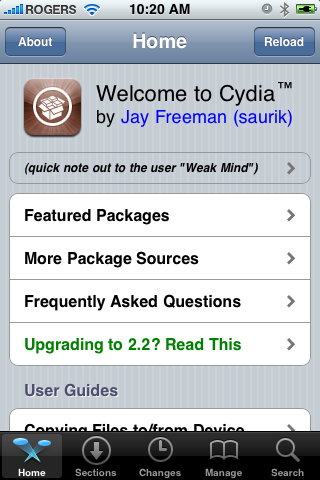
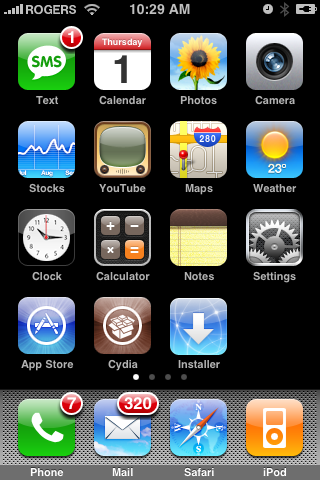
Press to launch Cydia Installer from your SpringBoard.


Step Two
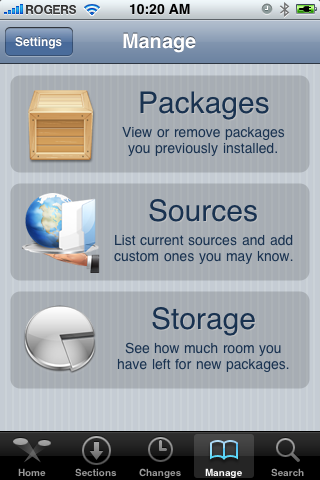
Press to select the Manage tab at the bottom of the screen.


Step Three
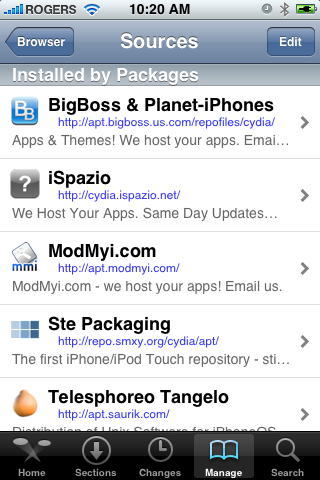
Press to select the large Sources button


Step Four
Press the Edit button at the top right of the screen.


Step Five
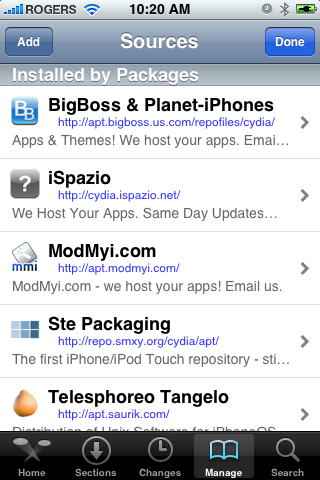
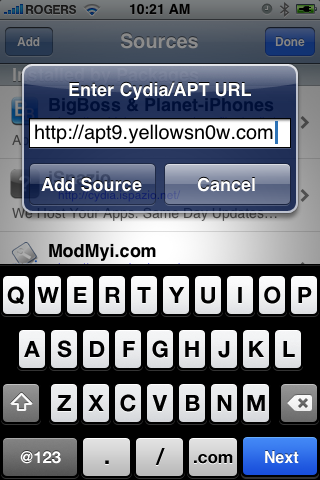
Press the Add button at the top left of the screen.


Step Six
Enter http://apt9.yellowsn0w.com/ as the source url and press the Add Source button.


Step Seven
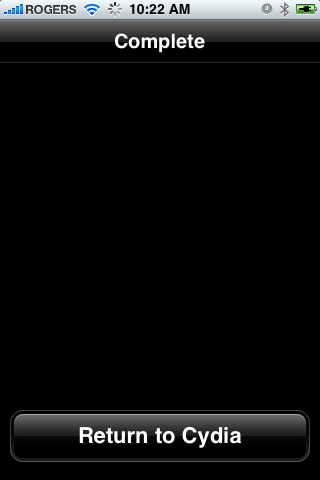
Once the source has been added press the large Return to Cydia button.


Step Eight
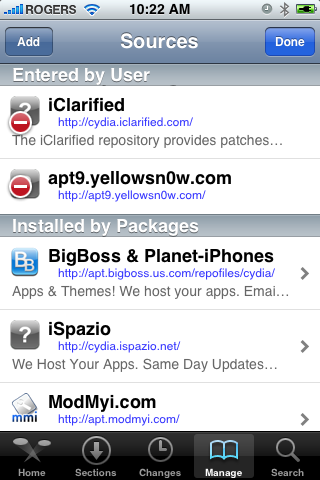
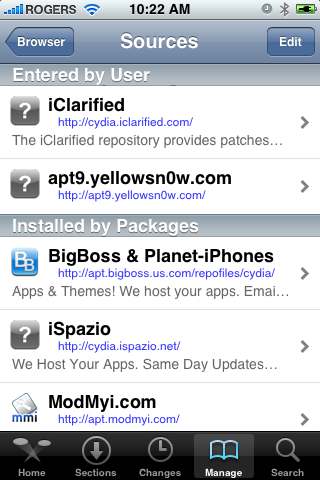
Press the Done button at the top right of the screen.


Step Nine
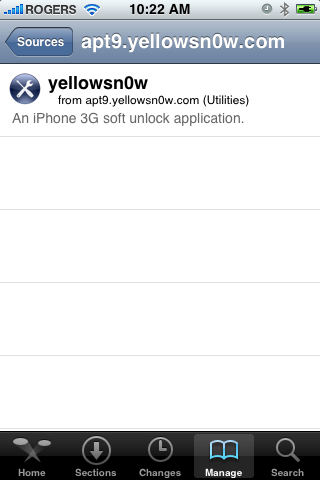
Press to select apt9.yellowsn0w.com from the list of user entered sources.


Step Ten
Press to select yellowsn0w from the list of packages


Step Eleven
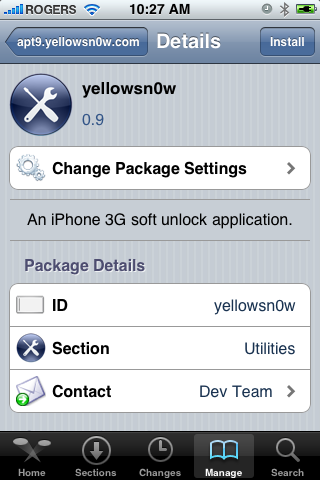
Press the Install button at the top right of the screen.


Step Twelve
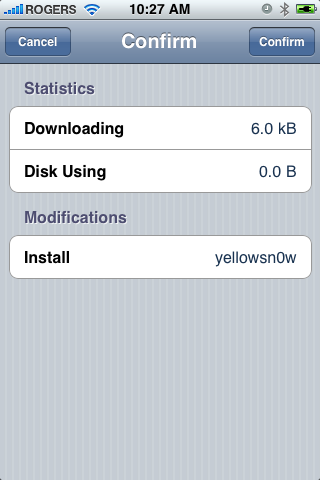
Press the Confirm button at the top right of the screen.


Step Thirteen
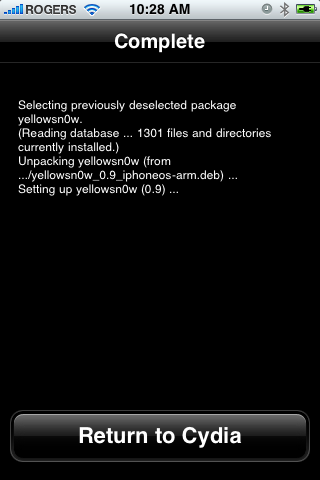
After installation completes successfully press the large Return to Cydia button.


Step Fourteen
Now press the Home button then power off and power on the iPhone. You do this by holding down the power button for 3 seconds then moving the power slider that appears to the right. Press the power button again to turn on the phone.


Step Fifteen
You should now be able to insert the SIM of your choice!

***HINTS: It seems that getting your iPhone to pick up your new carrier can be helped by turning off 3G and perhaps toggling the Airplane Mode switch on and off. If you are still having problems try removing and reinserting the SIM or booting with the new SIM already inside. Finally, you can also try to Reset Network Settings from the Settings:General:Reset Menu.

***IMPORTANT: For those having trouble. The yellowsn0w application can simply be uninstalled. If you have tried all the hints and suggestions and still have problems just use Cydia to remove the package and then reboot. You will then have service with your locked carrier as always.

Rogers and Fido Extend iPhone 3GS Promotion Through September 15th


Rogers and Fido have expanded the popular iPhone 3GS offers until September 15, 2009. Here is a summary of the upgrade options for current iPhone owners who do not meet the standard requirements for the upgrade:

1) For Rogers Wireless
Customers who bought a 3G iPhone between July 11 and September 30, 2008, with an average monthly expenditure of at least $ 100, Rogers will provide the $ 500 cost of an iPhone 3G S. This offer expires September 15, 2009 and comes with the addition of a one-year term for existing customers of service agreement.

3GS * 16GB $ 199
3GS * 32GB $ 299

2) Rogers Wireless customers who purchased an iPhone between July 11 and December 31, 2008, but are not eligible for the offer, Rogers will provide $ 250 toward the purchase of an iPhone 3G S. This offer expires September 15, 2009 and comes with the addition of a one-year term for existing customers of service agreement.

3GS * 16GB $ 449
3GS * 32GB $ 549

3) All Rogers Wireless customers can upgrade to the iPhone 3GS at our cost at Rogers.com, or for a suggested retail price of just $19 more than our cost through our retail channels.

* 8GB 3G $580/$599
* 16GB 3GS $680/$699
* 32GB 3GS $780/$799

4) Fido customers can take advantage of the Fido Rewards iPhone 3G S promotion:

* Use FidoDollars towards the purchase of a new iPhone 3G S
* Fido will top up the FidoDollars amount by $100
* This promotion does not include an extension or renewal of their service agreement.

6GB/$30 data plan promotion
Customers will be able to sign up for this data plan until September 15, 2009.
Rolling inventory of the iPhone 3GS is on its way, and back orders are being filled for customers on a priority basis.”

Apple support docs blame jailbreak for Visual Voicemail failure

Apple support docs blame jailbreak for Visual Voicemail failure


The iPhone Visual Voicemail problems are apparently the fault of iPhone customers. Apple has posted a support document that blames the Visual Voicemail bugs on the iPhone jailbreak. Apple is calling the jailbreak an “unauthorized modification to the iPhone OS” (which it most definitely is), but says that jailbroken iPhones will see disruption of services:

“such as Visual Voicemail, YouTube, Weather, and Stocks have been disrupted or no longer work on the device.”

Perhaps the Visual Voicemail problem wasn’t AT&T’s fault, after all.

But, Apple doesn’t just stop at Visual Voicemail. The iPhone jailbreak is being blamed for iPhone instability, unreliable voice and data services, compromised security, shortened battery life and even preventing future iPhone OS updates.

Apple is really pushing to keep the iPhone protected under the DMCA. Whether or not this just-posted support doc helps their case, that’s another matter altogether.

Apple iPhone jailbreak support doc

Unofficial Google Voice client available for the Palm Pre

Unofficial Google Voice client available for the Palm Pre


Palm Pre users can now grab the Google Voice client called dkGoogleVoice for their beloved device. It’s an unofficial app — i.e. not made by Google — but it should do the job just fine. From the UI, you can choose contacts from your address book or dial a number, and call or text them using your Google Voice number. Be aware that it’s still under development and comes with quite a few bugs. Still, if you need it, there’s no reason why not to try it out. Moreover, if you find is useful, you can donate and help developers make it even better. ;)

Download link along with few additional screenshots are available on the PreCentral forums.

Layers is a great iPhone app for artists


Layers is a neat iPhone app I recently spotted. It allows folks with talent to draw on the iPhone/iPod Touch. Sure, we’ve seen some similar apps in the past, but what makes Layers special is support for, well, layers — just like in Photoshop. Of course, don’t expect the versatility or feature set of the full blown desktop application on your beloved handset, but Layers will give you just enough tools to draw more comfortably while on-the-go.

For those who like to know some background details, Layers was created by a senior in computer engineering at Vanderbilt University - Ben Gotow…

Anyway, that’s about all I wanted to say about Layers. In case you’re wondering how much it costs, the price is 5 bucks ($4.99) and the download link is here (iTunes link).

[Via: JustAnotherIphoneBlog]

Apple releases MobileMe iDisk iPhone app

Apple releases MobileMe iDisk iPhone app


Apple releases MobileMe iDisk iPhone app for all your file-sharing needs
The iPhone-maker has just released the MobileMe iDisk iPhone application for free on the AppStore. MobileMe iDisk for iPhone allows MobileMe subscribers to view and share files stored in the MobileMe “cloud.”

If you have MobileMe, you have an iDisk. You might not even know it, but MobileMe allows you to automatically sync files to the cloud. MobileMe iDisk for iPhone allows you to manage all those files from your iPhone. And, it does it for free - doesn’t get any better than that.


MobileMe iDisk features:

- View files on your iDisk
- Access Public folders
- Easily share files from your iPhone
- Quickly access recently viewed files
- View iPhone-supported file types-including iWork, Office, PDF, QuickTime and more. (Files larger than 20MB may not be viewable.

Grab the app for free on the AppStore.

Apple has posted a demo video. Find it here.
MobileMe iDisk (iTunes link)

Apple says iPhone jailbreak supports terrorists and drug dealers

Apple has fired another salvo against the iPhone jailbreaking scene with their claim that jailbroken iPhones could be used to attack and disable cell-towers, as well as helping drug dealers avoid getting pinched by the “fuzz.” In the ongoing battle between Apple and iPhone hackers, Apple would have us believe that iPhone hackers could levy “potentially catastrophic” cyber-attacks against wireless networks.

At issue is whether or not consumers have the right to jailbreak their iPhones, or any other mobile phone for that matter. The “jailbreak” refers to a process that frees a cellphone’s file-system, allowing the user to install third-party software that would otherwise be impossible. In the case of the iPhone, the jailbreak essentially hacks the security measures Apple has put in place to protect the iPhone’s operating system. Under the current version of The Digital Millennium Copyright Act (DMCA) of 1998, “no person shall circumvent a technological measure that effectively controls access to a work protected under this title.” As it stands, the iPhone jailbreak violates the law of the land.

But, there’s hope yet for consumers. The Copyright Office takes requests every three years for exceptions to the DMCA, and the Electronic Frontier Foundation has put in a petition to allow consumers to jailbreak their handsets as they see fit. After all, once the consumer buys the device, it should be theirs to do with as they please.

Apple’s latest filing claims that the jailbreak gives hackers access to the iPhone’s baseband processor (BBP) code, which controls how the iPhone connects to cellular networks. With a little clever hacking, cyber-terrorists could send commands to a cell-tower that could leave it completely useless. Apple claims that allowing the jailbreak exemption to be approved is tantamount to giving hackers the keys that open the doors to cell-tower controls.

And, as if to hammer home the idea that jailbreaking is no good, Apple mentions that the jailbreak also allows an iPhone hacker to alter the handset’s identification number. That would allow the iPhone to make calls anonymously - which “would be desirable to drug dealers.”

Feel like sticking it to the “man” and jailbreaking your iPhone? Check out our iPhone 3GS jailbreak and unlock guide! (works with iPhone and iPhone 3G as well)

Find the EFF’s jailbreak petition here.

Find Apple’s original DMCA petition here.

[Via: Wired]

iPhone SMS text message bug puts all iPhones at risk

Security researchers have just stumbled across an iPhone SMS bug that could be used by nefarious pranksters to “quickly take over every iPhone in the world.” The iPhone SMS text message bug was discovered by Charlie Miller and his similarly-named research colleague Collin Mulliner. The iPhone bug, says Miller, exploits flaw in the way the iPhone OS processes SMS text messages. Using the exploit, hackers could send a succession of SMS text messages to an iPhone, allowing them to gain complete control of the handset. Hackers can then commandeer the iPhone to send similar text message strings to other iPhones, spreading like wildfire.

“SMS is an incredible attack vector for mobile phones,” says Miller. “All I need is your phone number. I don’t need you to click a link or anything.”

Miller and Milliner plan to reveal the SMS text message security vulnerability on Thursday at the Black Hat cybersecurity conference in Las Vegas. The duo say they’ve alerted Apple to the security hole, but the iPhone-maker has yet to release a patch to the iPhone SMS bug. Once announced to the world, the iPhone bug could potentially allow iPhones around the world to be hijacked in a very short time.

Apple, the ball’s in your court.

[Via: PCWorld]

Freeverse Slotz Racer updated for iPhone OS 3.0

he popular slot car racing game from Freeverse and Strange Flavour has been updated and the newest version is out - now fully compatible with iPhone OS 3.0, SlotZ Racer’s Music Playback and gameplay are now optimised for some serious racing!

Players can now step up their game with new Snow and Dirt scenery objects. Slippery tracks and dirt traction make SlotZ Racer an unbeatable thrill for the slot car enthusiast and speed demon alike! To celebrate, the price is being dropped to 99c for a Limited Time. Grab it today!

slotz 2 Freeverse Slotz Racer updated for iPhone OS 3.0

You can grab the game on the App store $0.99 / £0.59.


iPhone 3GS robot

Well, if they’re half as cool as Robochan, we hope it never does! Meet Robochan, a Kondo KHR-2HV humanoid robot controlled by an iPhone 3GS that also serves as the ‘bot’s head and face. Robochan comes to life with the iPhone 3GS connected through the dock connector. The iPhone 3GS can be used to control Robochan and displays different facial expressions - good for predicting when your wayward humanoid robot is planning to lash out at its human overlords.


Meet Robochan, the iPhone 3GS robot!

By Will Park on Tuesday, July 28th, 2009 at 10:35 AM PST In Apple, Hottest Hardware, iPhone OS

When will geeks’ obsession with smartphone-controlled robots end? Well, if they’re half as cool as Robochan, we hope it never does! Meet Robochan, a Kondo KHR-2HV humanoid robot controlled by an iPhone 3GS that also serves as the ‘bot’s head and face. Robochan comes to life with the iPhone 3GS connected through the dock connector. The iPhone 3GS can be used to control Robochan and displays different facial expressions - good for predicting when your wayward humanoid robot is planning to lash out at its human overlords.


[Via: Ubergizmo]

Stop motion iPhone 3GS dissasembly

Stop motion iPhone 3GS dissasembly
I’m filing this under “awesome geeky shit” because seeing an iPhone 3GS being torn apart is … just awesome. Make sure you hit the full screen button to enjoy the glorious HD detail:


iPhone SDK 3.1 goes beta 3

Tune Up Utilities

iPhone SDK 3.1 goes beta 3
Two weeks after the previous release, Apple (NSDQ: AAPL) has made a new beta of the iPhone SDK 3.1 available. Details are scarce at the moment, but we’re hearing video APIs are included with the update, allowing for cut and paste of small videos. Moreover, more augmented reality “enablers” were to be found in the package, as well.

And that’s about all we have. If you hear/see some other news regarding this update, please don’t hesitate to use the comments form bellow…

[Via: Gizmodo]

iPhone app scores devs more than 1000 paid downloads

iPhone app scores devs more than 1000 paid downloads


Even with all that money being spent on “zips” of purple kush, pot-heads across the US have driven over 1000 paid downloads of the “highest” iPhone app, recently launched on the AppStore. The Cannabis iPhone app, for those of you with (ahem) memory problems, gives iPhone-wielding smokers a quick and easy way to find the closest marijuana dispensary.

Using geo-location data garnered from GPS coordinates or cell-tower triangulation, Cannabis for iPhone helps you literally pin-point the “weed stores” in your area. The app shows 200 “green merchants” (okay, I’ll stop now) in the Los Angeles area, which should keep you and your friends busy for a good long while. Search for a specific club, find those around you and even bookmark your faves - just don’t forget your iPhone at home.

I should mention that Cannabis for iPhone wouldn’t even be a twinkle in some fiend’s red eyes if not for a California law that allows residents to light up the sticky green for medical purposes. Thanks to said law, cannabis dispensaries are popping up like, well, weeds. It’s no wonder the developers of Cannabis have so far seen over 1000 downloads of the $2.99 iPhone app


[Via: LATimes]

Resident Evil 4 for iPhone goes live


Resident Evil 4 for iPhone goes live
Just as expected, Resident Evil 4 for iPhone has gone live on the AppStore. Capcom’s more highly rated Resident Evil title is now available for iPhone gamers itching to take fire a couple rounds into a zombie head… or two. At $7.99 (iTunes link), Resident Evil 4 for iPhone isn’t one of the cheaper games on the AppStore, but it’s also arguably cooler than most $1 games available for the iPhone.

The RE4 for iPhone game puts you in control of a zombie-fighting gunslinger with on-screen touch controls. The game boasts the “best 3D graphics to date on iPhone,” and supports the shake control-gesture for reloading your weapons.

Go get your zombie-killing fix below!

Resident Evil 4 for iPhone

Bacon and Eggs Hallowed iPhone Protectors

Bacon and Eggs Hallowed iPhone Protectors
While most foodstuffs, especially greasy ones, are the bane of touchscreens and mobile tech in general, this modest slice of bacon and lonely egg stand firm between your beloved iPhone and the cruel outside world. Earbuds can enjoy safe passage nestled lovingly under a golden over-easy, while bacon, ever the protector of all things good and right in the world, staunchly holds the top flap shut. Try not to let your ravenous hunger overpower you while admiring this case, however - only a moutful of felt awaits you. Why not use your iPhone to find the closest diner? Pick up your bacon and egg iPhone sleeve for $35.00 from Etsy.


[via iPhoneSavior]